See where topics live
Insights shows how the workspace is organised, not just how busy it is. Folders, tags, and concepts each get a panel that maps where topics live and where the structure breaks down.
Every panel respects the Workspace and Range pickers in the header. Panels that show distributions can also switch between their visual view and Table for exact numbers.
Prerequisites
- You are signed in to not24get.me and have an open workspace.
- The workspace contains filed links, otherwise the distribution panels are empty.
Steps
Open Insights
In the bookmark hub, open Navigate and choose Insights. Set the Workspace and Range pickers to the scope you want to inspect.
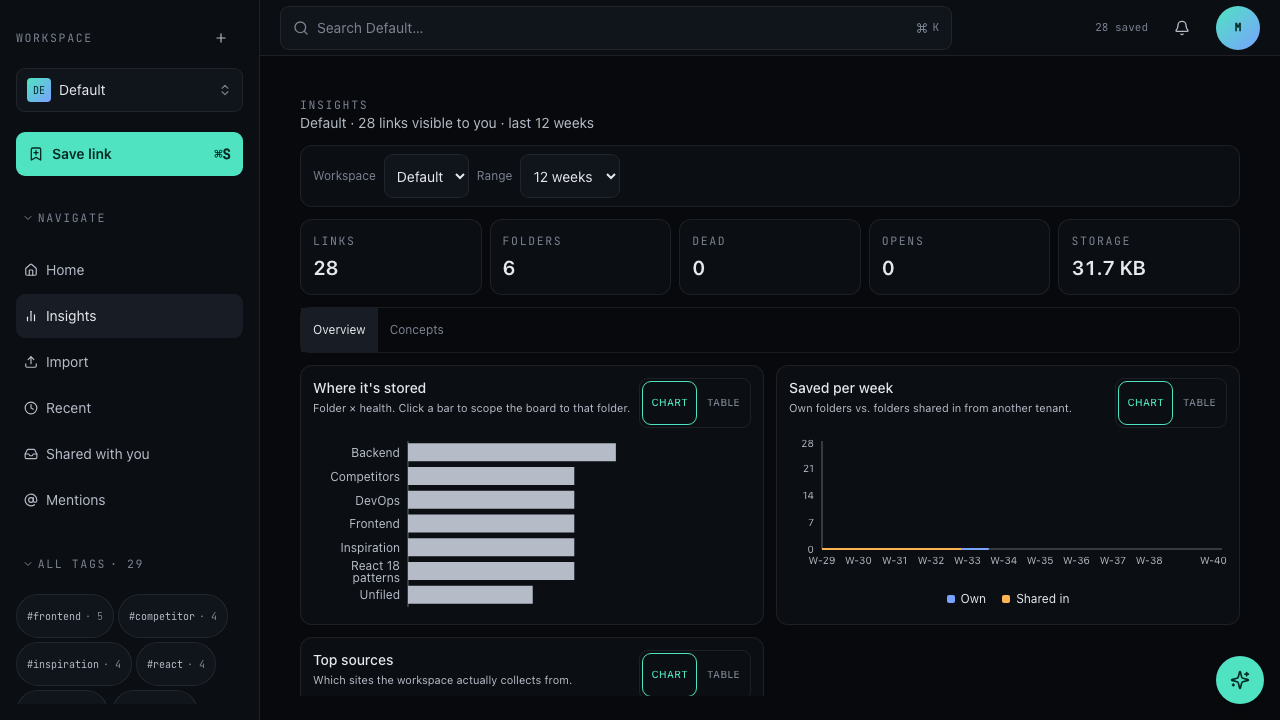
Read Where it's stored
This panel shows folder × health bars: one bar per folder, split by link health. Click a bar to scope the board to that folder and inspect its links.
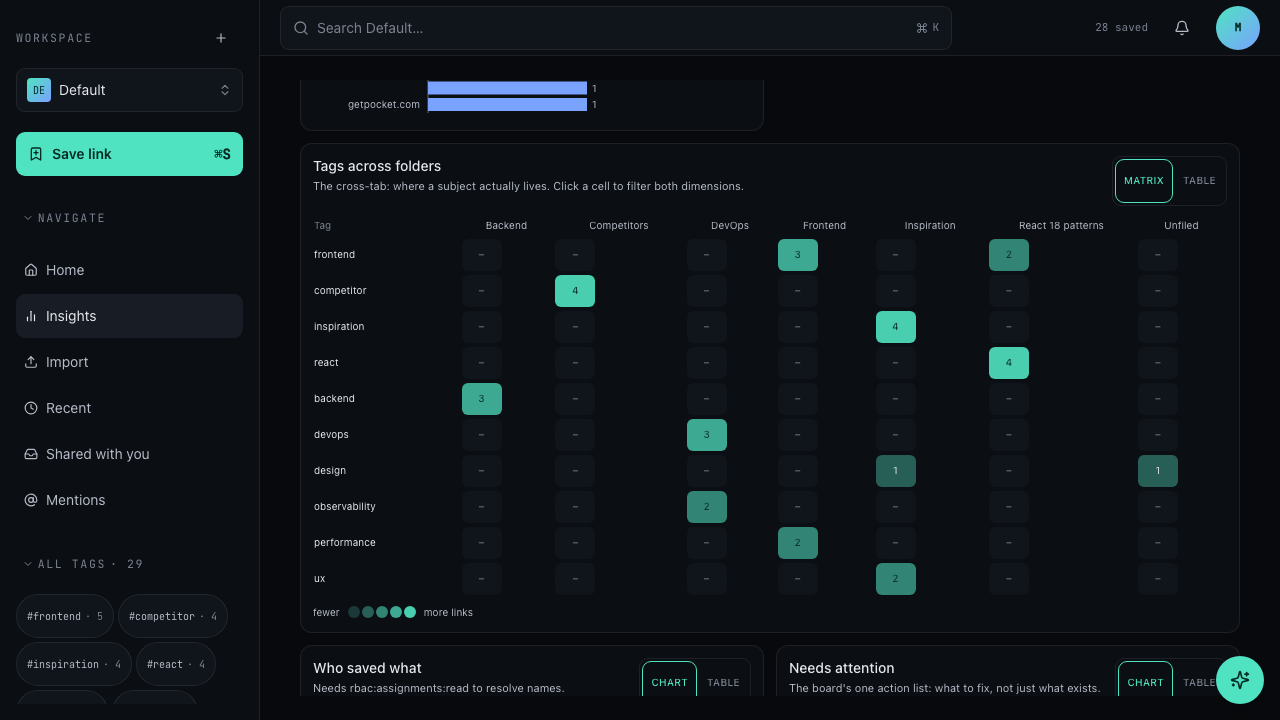
Read Tags across folders
This panel shows a tag × folder matrix: each cell counts the links that carry a tag inside a folder. Click a cell to filter both dimensions at once, the tag and the folder.
Read Where each concept lives
This panel shows a concept flow from each concept to the folders that hold its links. A concept fanning out into many folders signals a filing problem, and a folder fed by many concepts signals a junk drawer. Links with no concept are counted as unfiled.
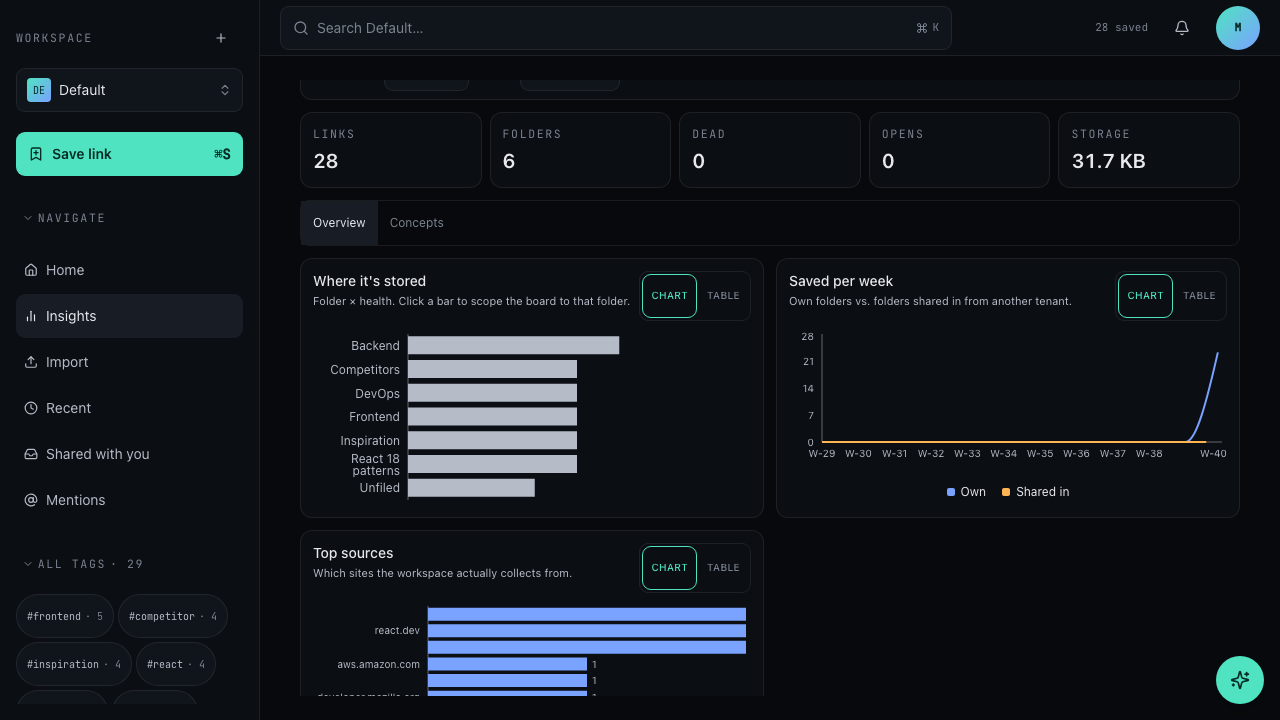
Read What it's been about, Top sources, and Saved per week
What it's been about shows the concept mix per week. Top sources shows which sites the workspace collects links from. Saved per week separates own folders from folders shared in from another tenant, so growth from sharing never hides your own saving activity.
Reading the concept flow
Use the flow to decide where the structure needs work. A concept spread thin over many folders usually means one home folder would serve it better. A folder that receives from many concepts usually means it accumulated whatever had nowhere else to go. File the unfiled links first; they are the cheapest way to shrink both problems.
Troubleshooting
- Unfiled links look high: links with no concept count as unfiled. File them under a concept to make Where each concept lives meaningful.
- A folder bar looks unhealthy: click the bar in Where it's stored to scope the board to that folder, then work the Needs attention lists for its links.
- Who saved what shows no names: the panel needs the
rbac:assignments:readpermission to resolve member names. Without that permission, names stay hidden for the role; ask an admin to review the role assignments.
Related
- Save a bookmark for the flow that adds links and concepts
- Create a folder to give scattered concepts a proper home
- Understand roles and permissions for the permission behind hidden contributor names