Read the Insights board
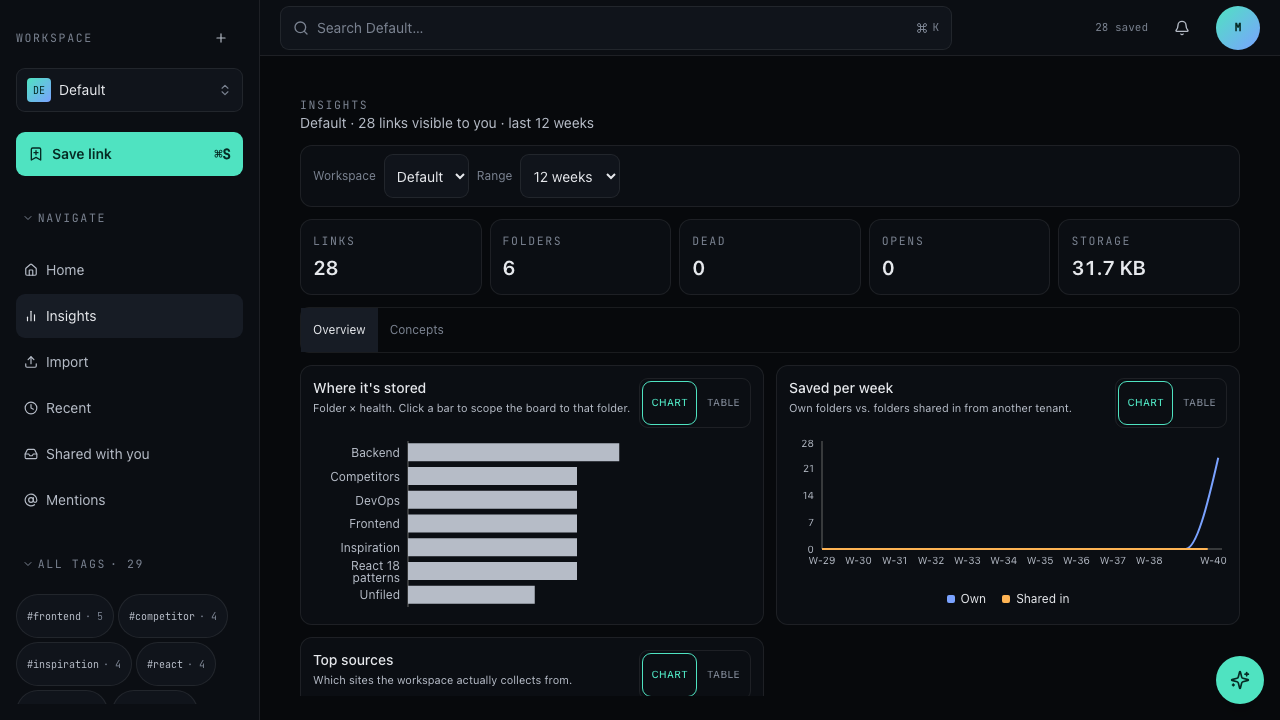
Insights is the analytics board of the bookmark hub. It aggregates the links that are visible to you into KPIs, lists, and panels that reveal health, activity, and storage.
Everything on the board is scoped by two controls in the header: the Workspace picker and the Range picker. The header line states which workspace is shown, how many links are visible to you, and which range the numbers cover.
Prerequisites
- You are signed in to not24get.me and have an open workspace.
- You can see at least one link in that workspace, otherwise the board is empty.
Steps
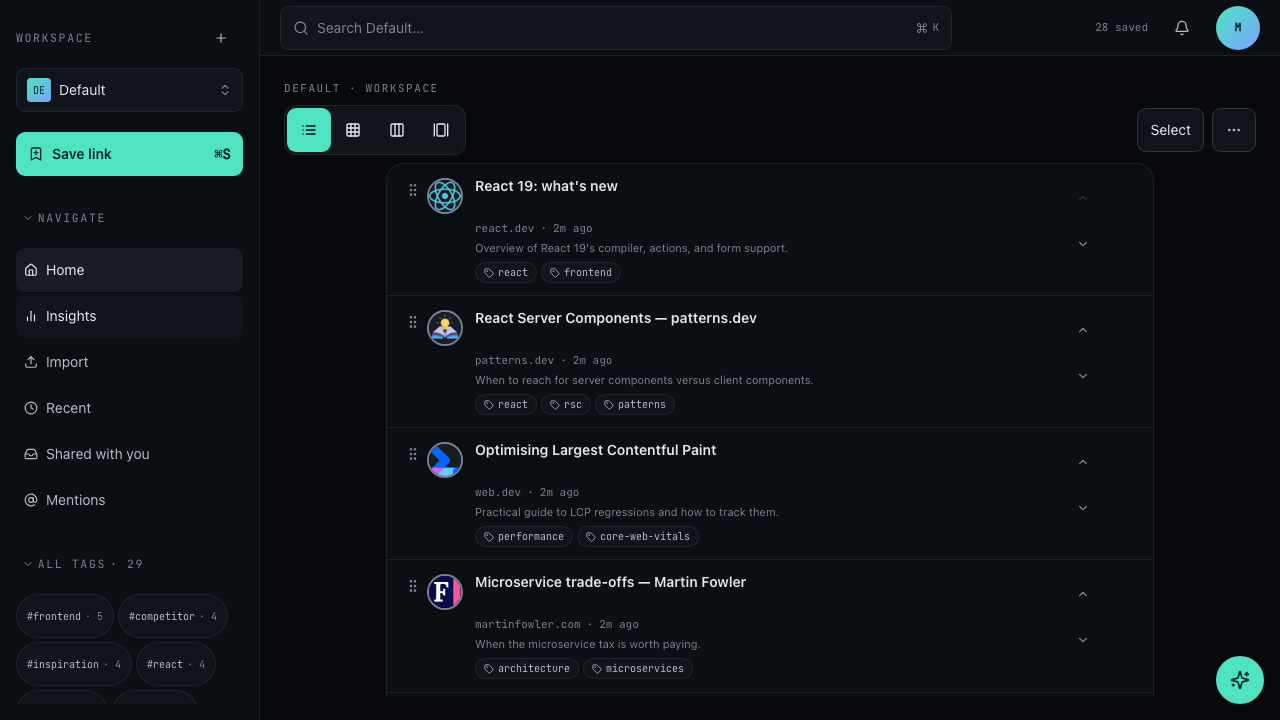
Open Insights
In the bookmark hub, open Navigate and choose Insights.
Pick a workspace
Use the Workspace picker in the header to choose which workspace the board aggregates. The header line restates the workspace next to the link count and the range.
Pick a range
Use the Range picker to set the time window. Ranges include 12 weeks; the header line ends with the active range, for example "last 12 weeks".
Read the KPI row
The KPI row shows five headline numbers: Links, Folders, Dead, Opens, and Storage. Use them as a health summary before drilling into any panel.
Switch between Overview and Concepts
The board has two tabs, Overview and Concepts. Overview aggregates links, folders, and activity; Concepts breaks the same workspace down by the concepts your links are filed under.
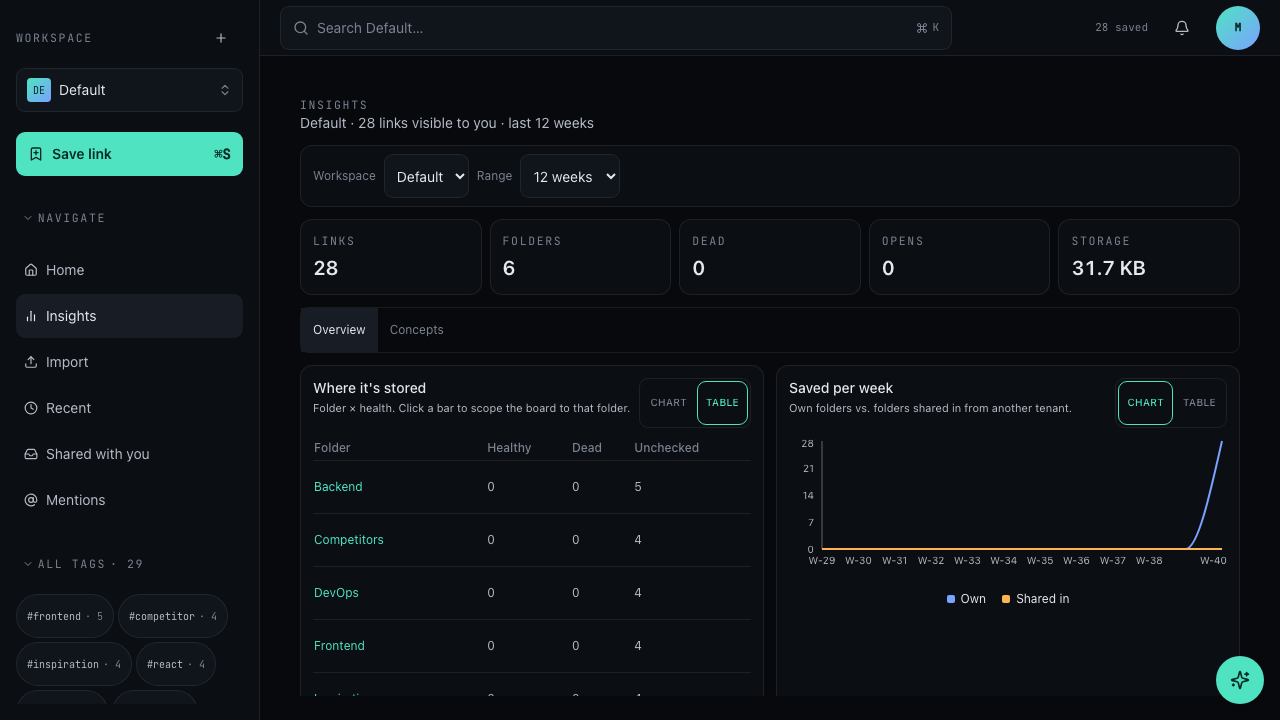
Switch any panel between chart and table
Every panel can switch between its visual view and Table. The visual view is a Chart, Matrix, Flow, or Plot depending on the panel. Switch to Table when you need exact numbers, and back to the visual view for shape and distribution.
Troubleshooting
- Counts look lower than expected: the board only counts links visible to the signed-in member, and the Range limits the window, for example 12 weeks. Widen the range or confirm the workspace picker is set to the workspace you expect.
- Who saved what shows no names: the panel needs the
rbac:assignments:readpermission to resolve member names. Without that permission, names stay hidden for the role; ask an admin to review the role assignments. - A panel looks empty: check the Workspace and Range pickers first. Panels only render data inside the selected workspace and range.
Related
- Save a bookmark to grow the link count the board aggregates
- Create a folder to structure what the board reports as folders
- Understand roles and permissions for the permission behind hidden contributor names