Share a folder in read-only mode
Folders are shared only through a share link: a unique URL you copy and send. Recipients can view the folder, its bookmarks, and notes — they cannot add, edit, move, or delete anything. You can revoke the link later so it stops working.
Read-only sharing is the safest default when you want stakeholders to browse a curated list without changing it. Recipients do not need a not24get account to open the link. Treat the URL like a secret: anyone who has it can view the folder until you revoke access.
Prerequisites
- The folder exists in a workspace you can manage. Create one with Create a folder if needed.
- You are signed in as someone who can open Share folder for that folder (typically the owner or a workspace member with edit rights).
- Decide who should receive the URL. There is no separate “invite by email” path for folder sharing — access is always via the copied link.
Steps
Open the folder's Share dialog
Right-click the folder in the sidebar (or open it and click Share in the toolbar) and choose Share folder.
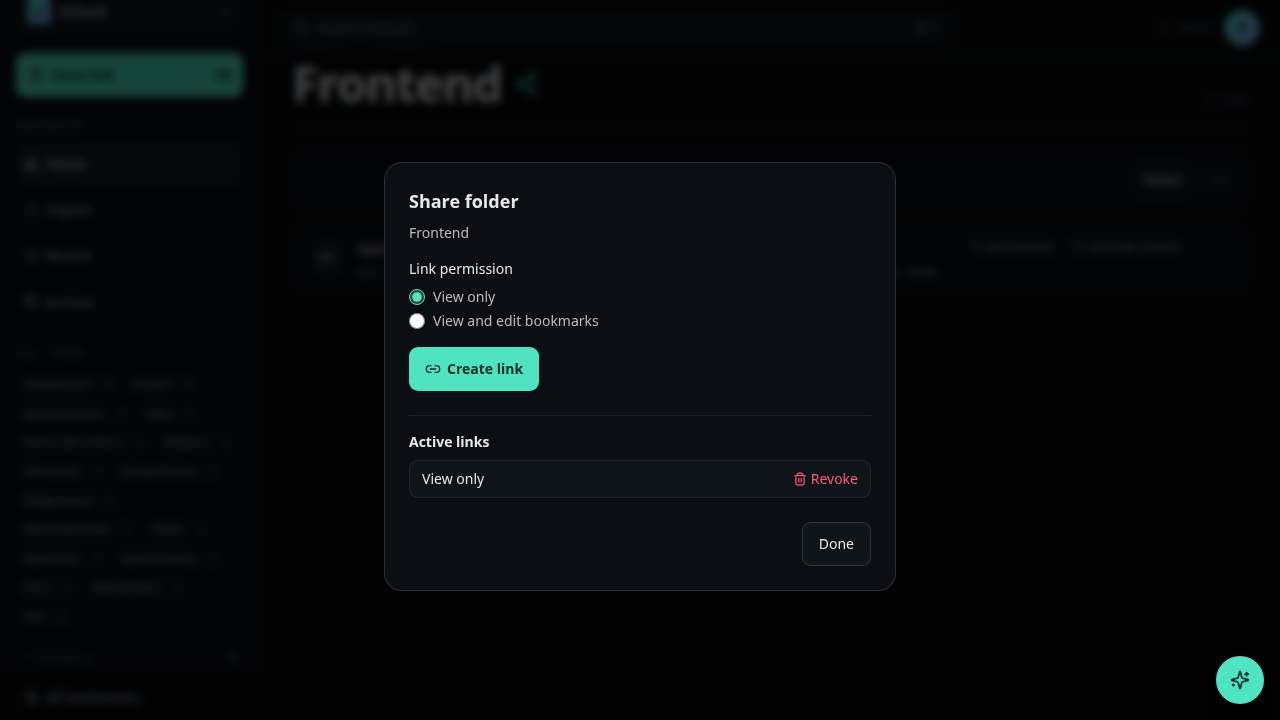
Set the permission to Read
In the Permission dropdown, select Read.
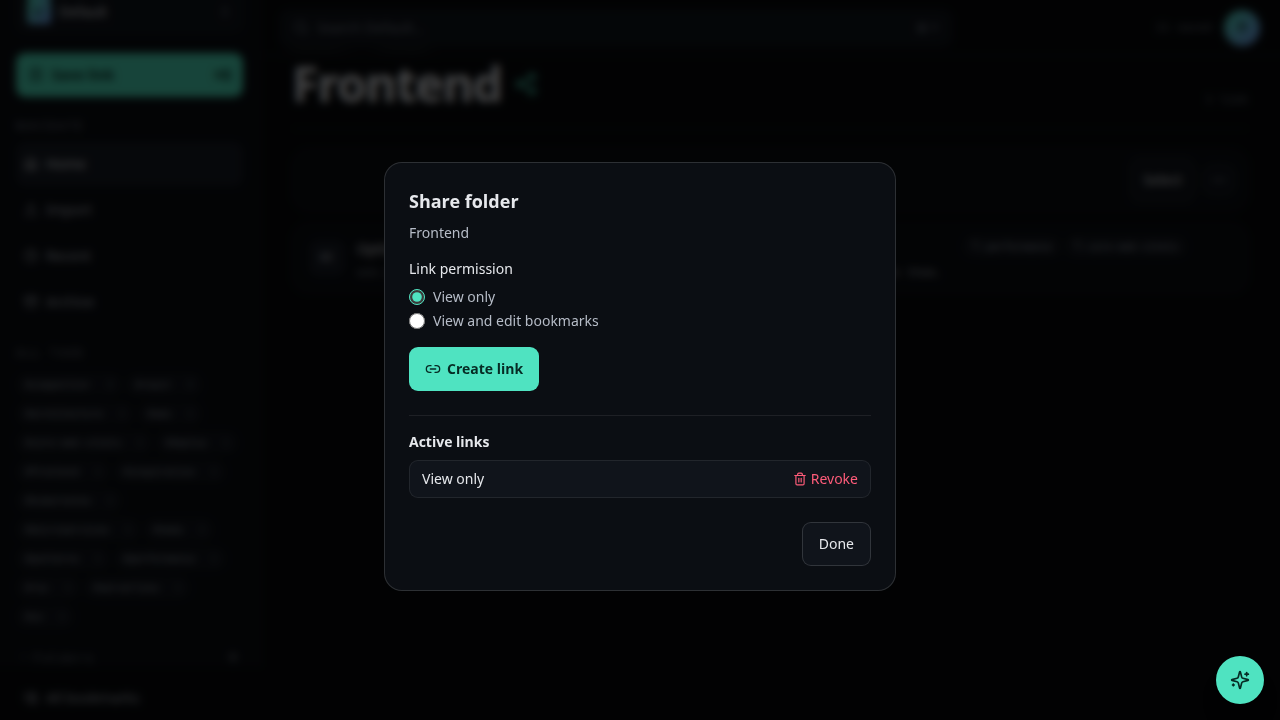
Copy the share link
Use Copy share link. Anyone with that URL can open the folder read-only until you revoke it. There is no separate “invite by email” path for folder sharing — access is always via this link.
Save
Click Save if the dialog requires it, then send the copied URL to the people who should have access.
Revoke access
Reopen the Share dialog and click Revoke link. After revoke, existing recipients see an error or empty state when they reload the old URL. Create a new link if you need to share again.
Troubleshooting
- Recipients can edit bookmarks — the link is probably Read & write. Open Share, set Permission to Read, save, copy the link again, and revoke the old URL if it was already circulated.
- Link opens but shows nothing useful — confirm you copied the URL after Save, and that the folder still contains bookmarks. Revoked links stop working immediately.
- Share folder is missing — you may be viewing someone else's read-only share rather than the owner workspace. Switch to your workspace and open the folder from the sidebar.
- Need people inside your tenant instead — use Invite members for organization access; folder share links are for link-based collaboration outside (or alongside) membership.