Getting started
This guide walks you from a new account to a usable setup in under five minutes. By the end you will have verified email access, an open workspace, and at least one saved link you can find again later.
not24get is organized around a few building blocks. Learning the names once makes every later how-to easier to follow.
Concepts at a glance
- Workspace — your private container. Everything you save lives inside a workspace.
- Folder — a way to organise bookmarks within a workspace. Folders can be shared with other members.
- Bookmark — a saved link with optional notes and tags.
- API key — a token that lets external tools act on your behalf.
Prerequisites
- A working email address you can open for the verification message.
- A modern browser (Chrome, Firefox, Safari, or Edge).
- Optional: an HTML bookmarks export if you plan to import an existing library right after setup.
Steps
Create your account
Go to not24get.me and sign up. You will receive a verification email — open it and confirm your address.
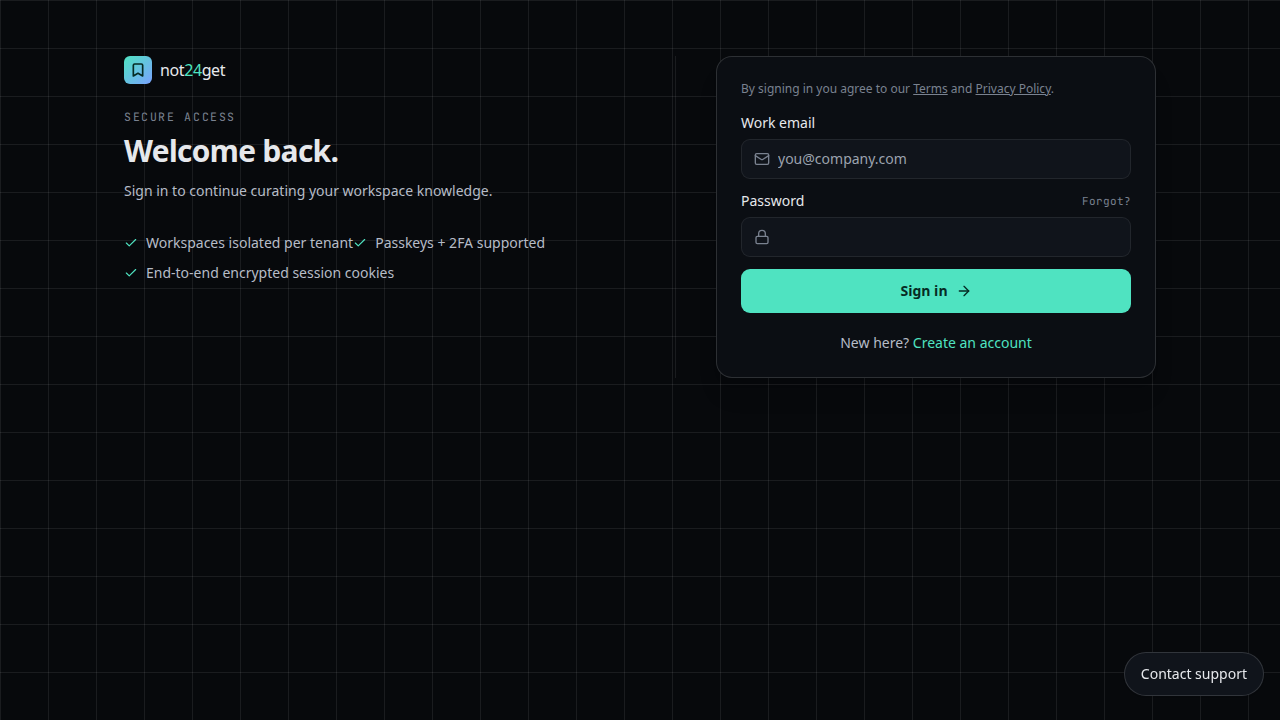
Sign in
After verification, sign in with the email and password you set.
Create your first workspace
See Create a workspace for the full guide. By default, a personal workspace is created for you.
Save your first bookmark
Follow Save a bookmark to capture your first link.
Troubleshooting
- No verification email — check spam and wait a minute. Request a resend from the sign-up screen if available, and confirm you typed the address correctly.
- Cannot sign in after verifying — use the same email you verified; password reset is available from the sign-in screen if needed.
- Empty workspace after sign-in — a personal workspace is created by default. Open the workspace switcher (top left) if you belong to more than one tenant or workspace.
- Want your old browser bookmarks — export HTML from the browser, then follow Import bookmarks.
After your first bookmark
Organize with a folder, invite a teammate if you collaborate, or import an existing
browser library. When you are ready to automate, create an API key and try a simple
GET /api/v1/me call from the developer docs. Keyboard shortcuts speed up daily
hub work once the basics feel familiar.
Related
- Create a folder and start organising
- Invite members if you want to collaborate
- Import bookmarks
- Create an API key for integrations
- Keyboard shortcuts
- User manual overview