Save a bookmark
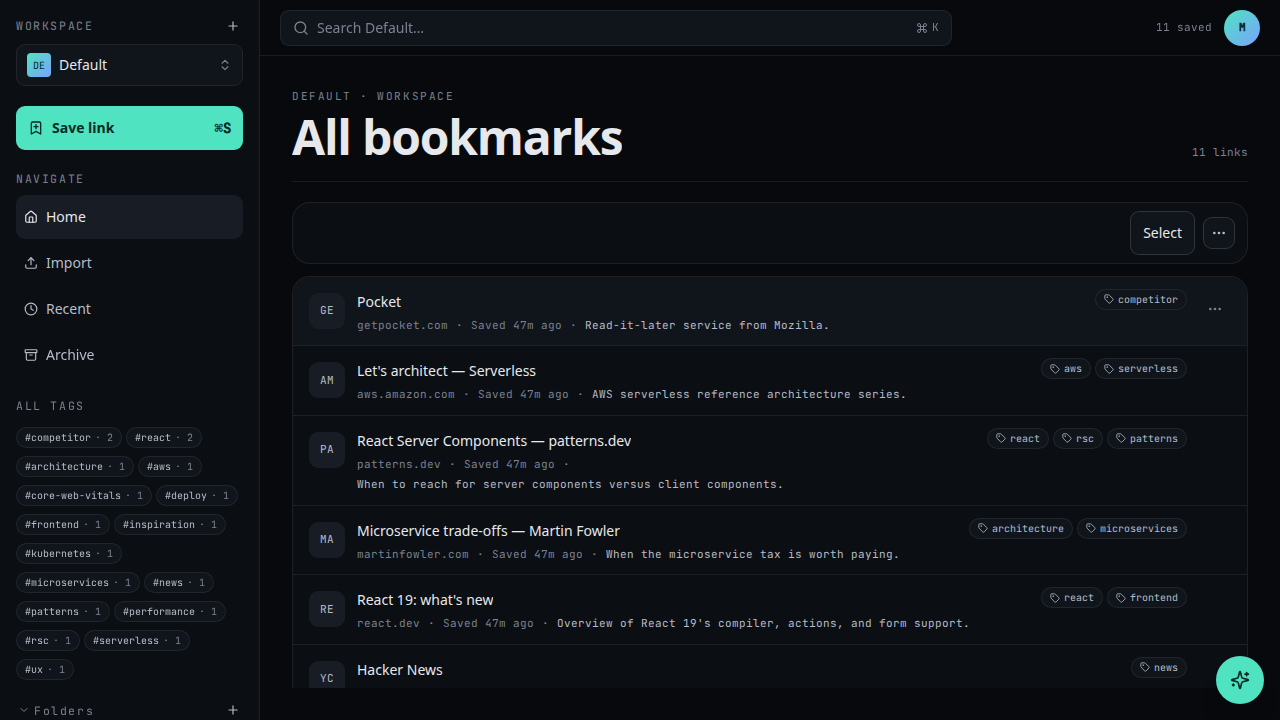
Save a link into the workspace you are currently viewing. The bookmark is created with the page's title; you can edit the title, add notes, choose a folder, and add tags before saving.
Use this flow when you already have a URL, or when you are organizing links from research, tickets, or docs. For capturing the page you are looking at without copying the address bar, install the not24get browser extension and save in one click.
Prerequisites
- You are signed in and viewing the workspace where the bookmark should live.
- Optional: create a destination folder first with Create a folder.
- Optional: learn hub shortcuts in Keyboard shortcuts — for example N opens the New menu.
Steps
Open the New bookmark dialog
From the workspace shell, click New and choose Bookmark, or press N from anywhere in the app.
Paste or type the URL
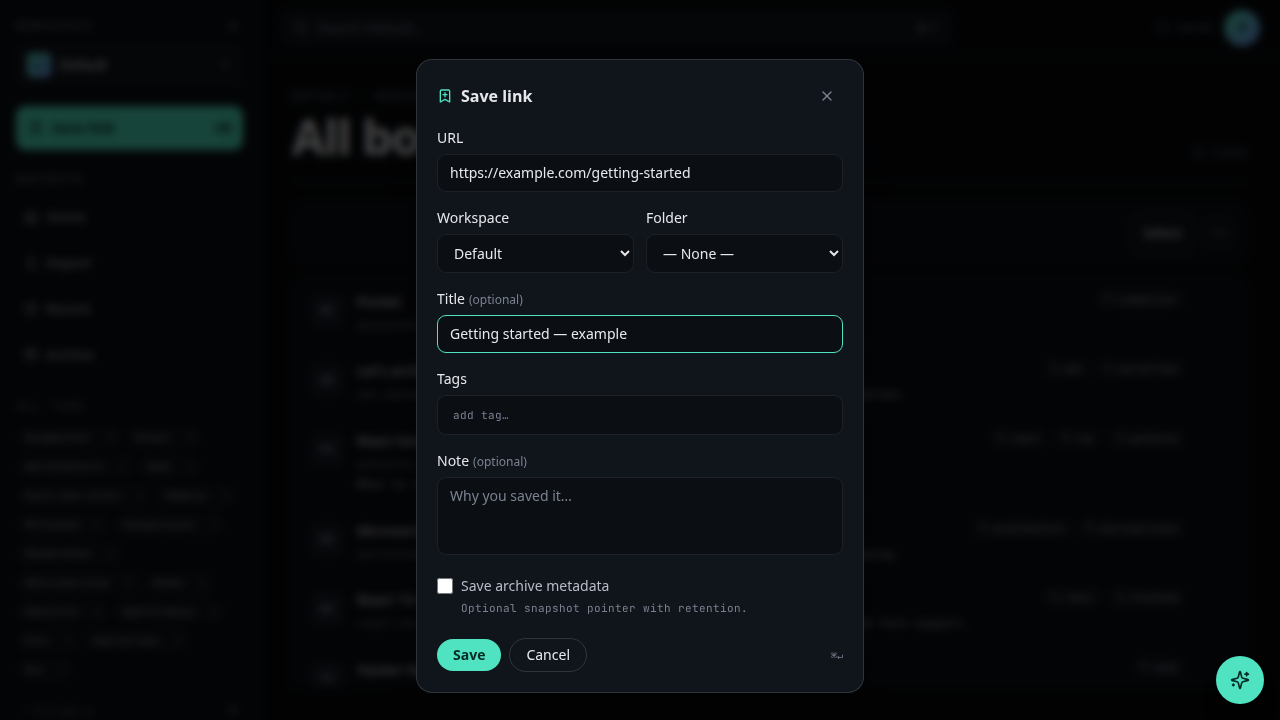
Paste the URL into the URL field. The title is fetched automatically from the page. You can edit it.
(Optional) choose a folder
Pick an existing folder from the Folder dropdown, or leave it empty to save into the workspace root.
(Optional) add tags
Type tag names separated by commas. New tags are created on the fly.
Save
Press Cmd+Enter or click Save.
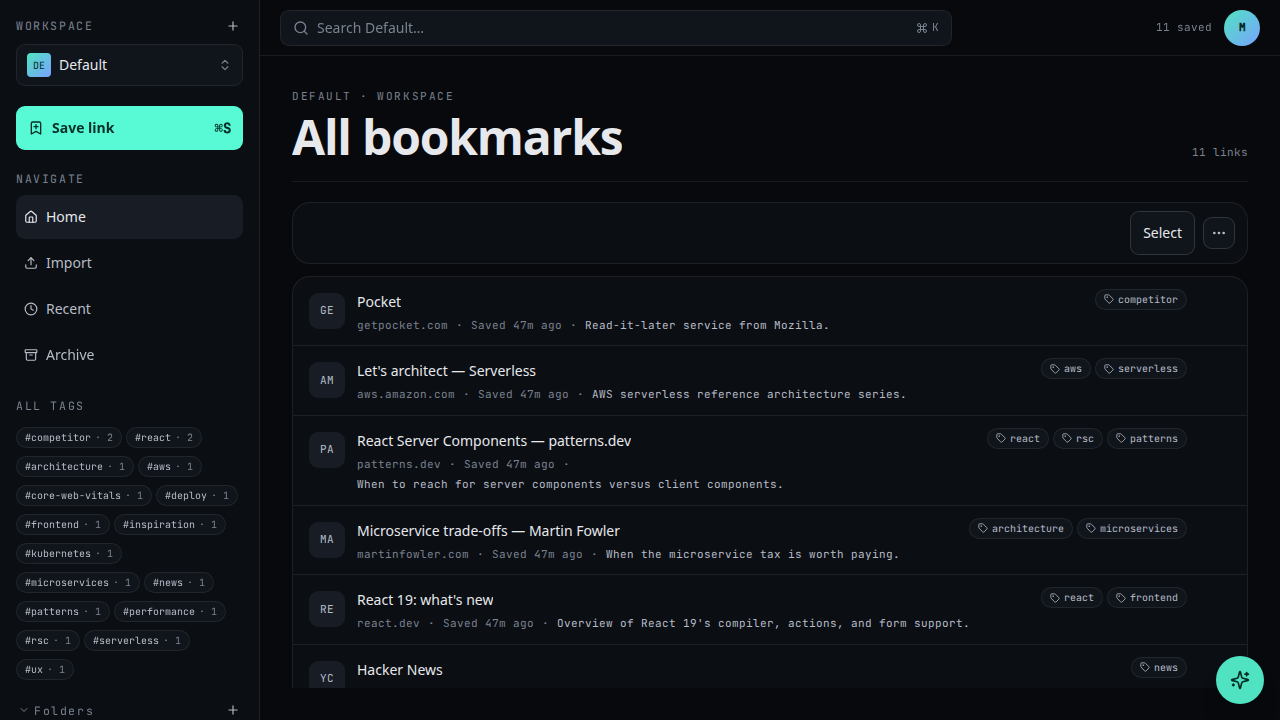
Saved bookmarks appear at the top of the list, sorted by recency.
Troubleshooting
- Title stays blank — some sites block metadata fetches. Enter a title manually and save again.
- URL validation error — include the scheme (
https://…). Incomplete or malformed addresses are rejected. - Wrong folder — open the bookmark and edit the folder, or move it from the row actions. Create folders ahead of time if you save often into the same collection.
- Bookmark missing after save — confirm you are still in the same workspace and clear any search or tag filters in the hub.
- Need many links at once — use Import bookmarks from a browser HTML export instead of saving one by one.
Tips for everyday saving
Paste the full URL including https://. Add a short note when the title alone will
not remind you why you saved it. Use consistent tags (research, vendor,
todo) so search stays useful as the library grows. Prefer folders for project
boundaries and tags for cross-cutting themes.
Related
- Import bookmarks from your browser
- Create a folder to organise saved links
- Create a workspace
- Connect Web MCP to save via an AI assistant
- Keyboard shortcuts