Import bookmarks
Import an existing bookmarks library by uploading the HTML file your browser exports. not24get preserves the folder tree from that file so you can keep the structure you already use in Chrome, Firefox, Safari, or another browser that supports Netscape-style HTML exports.
Imports run in the background after you confirm the preview. Large libraries can take a short while; stay signed in until the completion toast appears. You can keep browsing the workspace while the job finishes.
Prerequisites
- A bookmarks HTML export from your browser (not a sync backup proprietary format).
- An active not24get workspace with room under your plan limits for the bookmarks you intend to import.
- Optionally, review Create a folder if you want empty target folders ready before import — the importer can also recreate folders from the file.
Steps
Export bookmarks from your browser
Most browsers export bookmarks as a single HTML file. In Chrome: Bookmarks → Bookmark manager → ⋮ → Export bookmarks. In Firefox: Bookmarks → Manage Bookmarks → Import and Backup → Export Bookmarks to HTML.
Open the Import dialog
In not24get, open the Workspace settings menu and choose Import bookmarks.
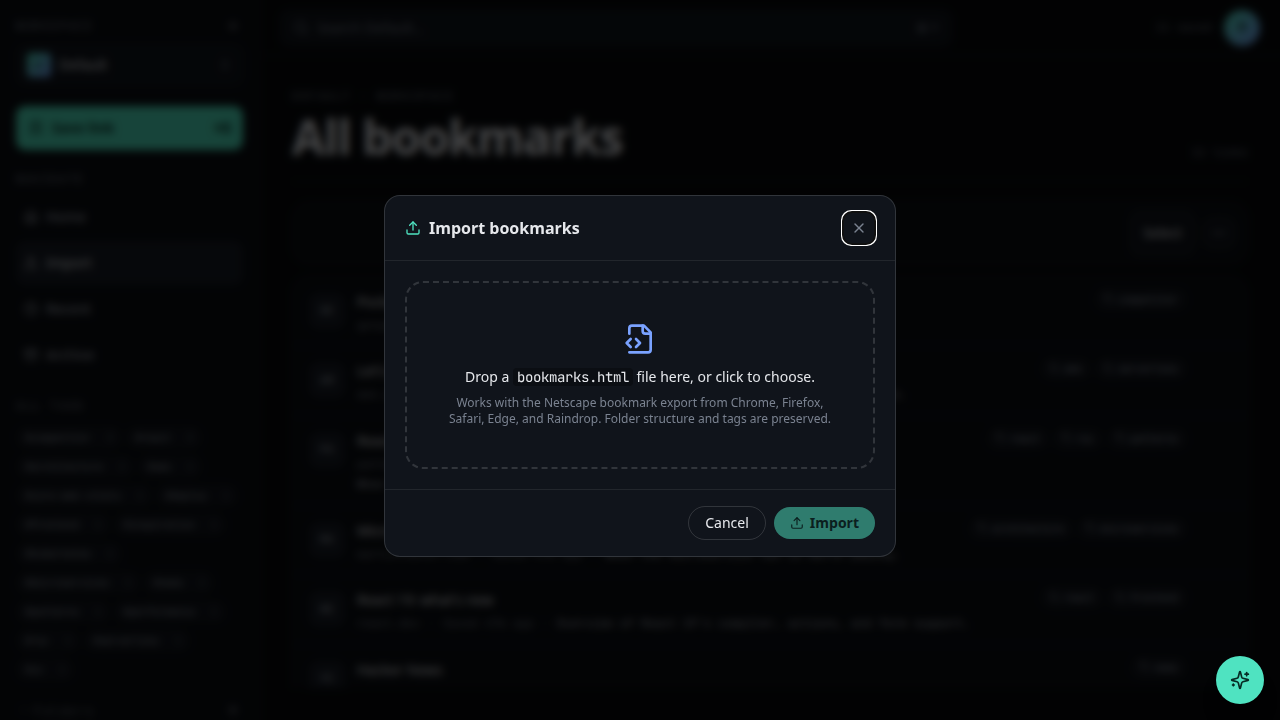
Upload the HTML file
Drop your exported file or click to browse. The folder structure is preserved — each browser folder becomes a not24get folder.
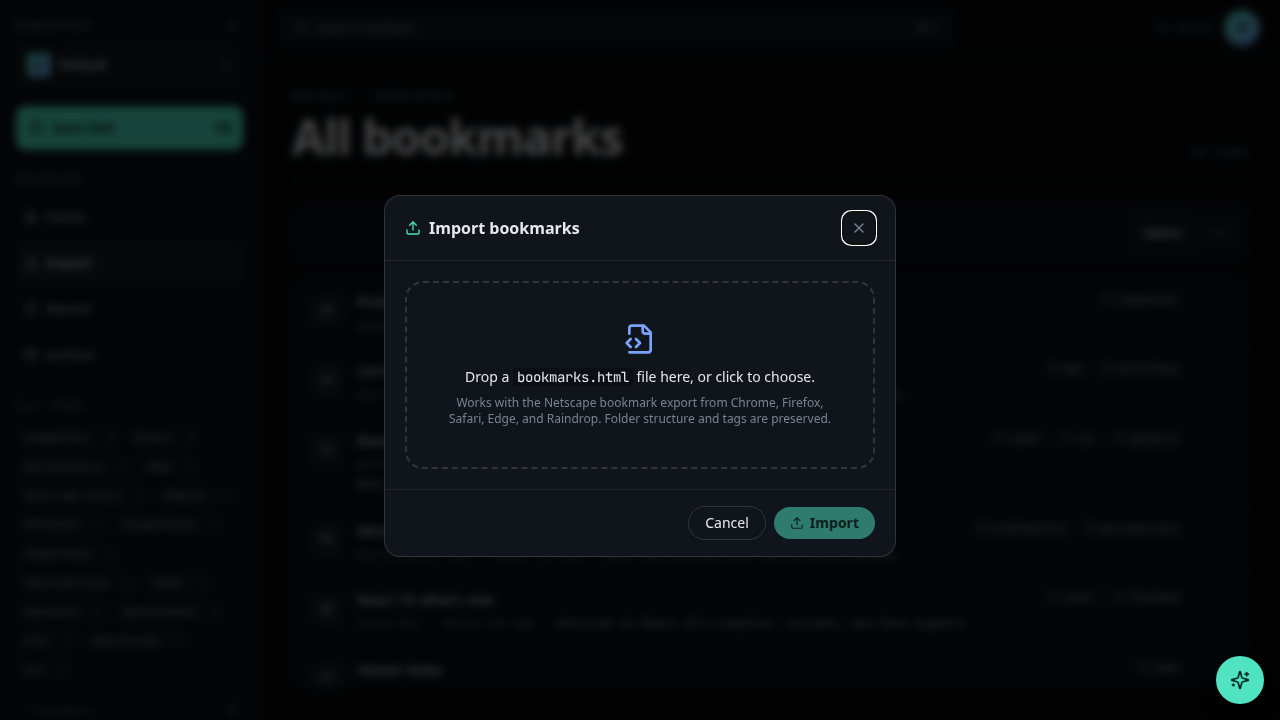
Review the preview
not24get shows a preview of folders and bookmarks. Deselect anything you do not want imported.
Confirm import
Click Import. Imports run in the background; you'll see a toast when finished.
Troubleshooting
- File is rejected — confirm it is an HTML bookmarks export, not a CSV or browser profile zip. Re-export from the browser and try again.
- Folders look wrong — browsers nest bookmarks differently. After import, rename or move folders with Rename a folder as needed.
- Many duplicates skipped — that is expected when URLs already exist. Adjust the duplicate option in the preview if you intentionally want another copy policy for that run.
- Import never finishes — wait for the toast, then refresh. Very large
files may take longer; check plan limits if you hit a quota error (see
Errors for
plan_limit_exceededwhen using the API). - Need one link only — use Save a bookmark instead of a full import.
Related
- Save a bookmark
- Create a folder
- Create a workspace
- Getting started
- Bookmarks API reference: /developer-manual/api-reference/bookmarks