Create a folder
Folders are how you organise bookmarks within a workspace. They can be nested, renamed, moved between workspaces, and shared with other members. Use folders when a flat bookmark list becomes hard to scan, or when you want a shareable collection for a project or team.
A folder always lives inside the active workspace. Switching workspaces changes which folders you see in the sidebar. Nested folders inherit that same workspace boundary — you cannot nest a folder from one workspace under a parent in another.
Prerequisites
- You are signed in to not24get.me and have an open workspace.
- You can create content in that workspace (tenant member or admin). Read-only support roles cannot create folders.
- Decide a clear name before you create. Names must be unique among folders that share the same parent.
Steps
Open the New menu
Click New in the workspace toolbar and choose Folder.
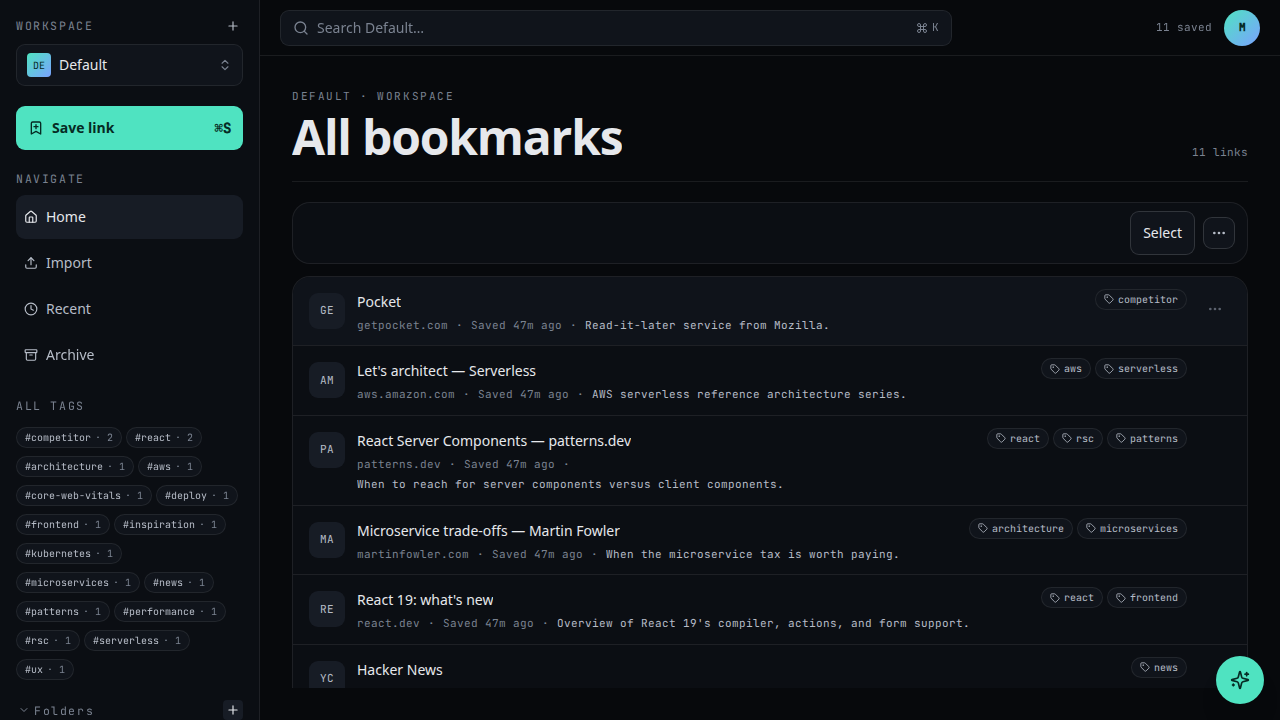
Name the folder
Give it a clear name. Names are unique per parent folder; pick one you'll recognise later.
Create
Click Create. The folder appears in the sidebar.
Troubleshooting
- Create is disabled or missing — confirm you are in the correct workspace and that your tenant role is not support. Refresh the app if you recently received admin access.
- Name already exists — pick a different name under the same parent, or rename the existing folder first. Sibling uniqueness is enforced in the dialog.
- Folder does not appear — check the sidebar Folders list and any active filters. Nested folders appear under their parent; expand the tree if you created a child.
- Wrong workspace — open the workspace switcher (top left) and switch before creating. Folders are never shared across workspaces unless you use Move to workspace later.
When to create a folder
Create a folder when a topic will grow beyond a handful of links, when you plan to share a curated list, or when tags alone are not enough structure. Prefer shallow trees that match how your team talks about work. Deep nesting is supported, but flat project folders are usually easier to scan in the sidebar and in share links.
Related
- Rename a folder when the name no longer fits
- Save a bookmark directly into this folder
- Share the folder in read-only mode
- Share with read and write access
- Create a workspace if you need a separate container for this collection