 By
By 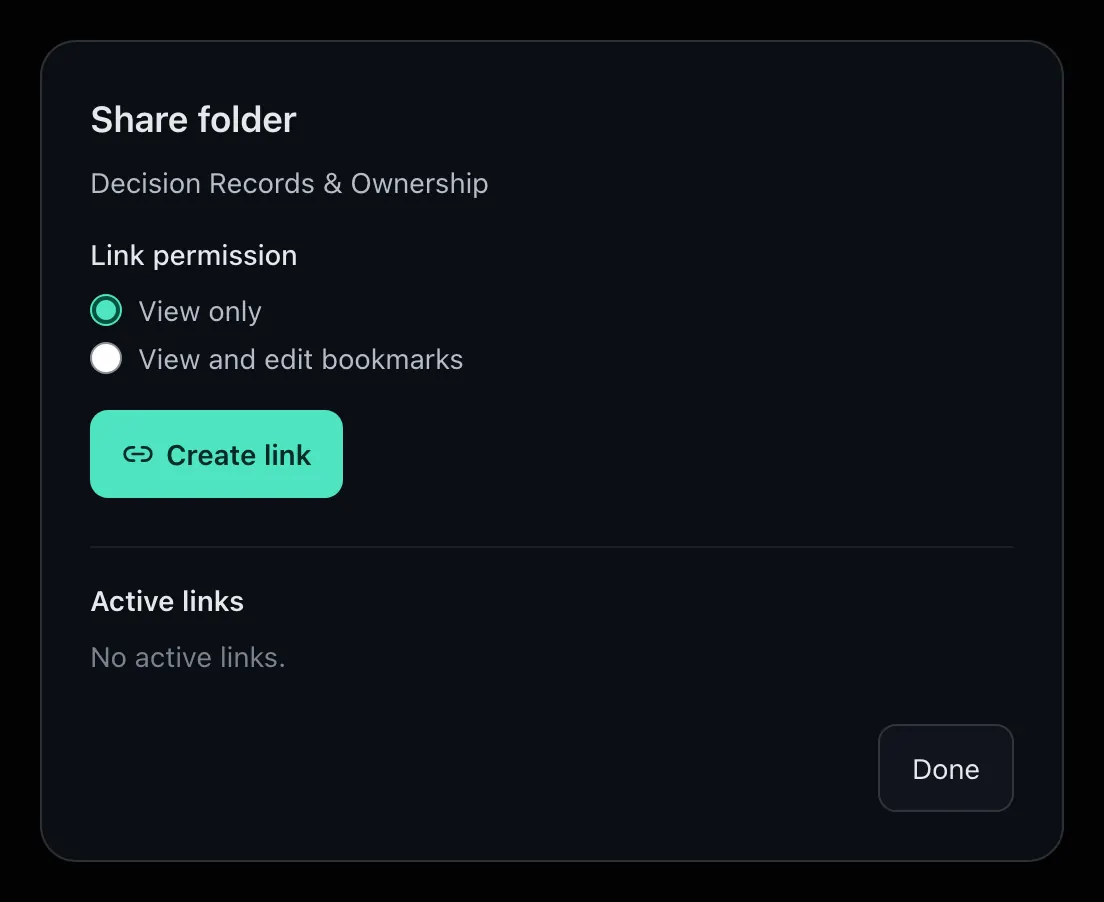
Teams lose useful pages in chat history every week. Someone pastes a URL, the thread moves on, and the next person asks again. Shared bookmarks fix that, but only when you organize links for your team so the library has a clear shape.
Team bookmarking is not a dump of every link anyone ever liked. It is a small set of collections people trust as a source of truth.
Start personal, share when needed
Begin with a private workspace. Save drafts, research, and personal references without noise. Promote a folder to a shared space when more than one person needs the same set of links on a recurring basis.
That path keeps the shared library clean. People do not flood the team space with temporary tabs.
Give every shared folder a job
Name folders after a purpose, not a person:
- Onboarding references
- Product specs in review
- Vendor docs for operations
- Customer research for the quarter
Add a short note at the top of each collection that explains what belongs there and who maintains it. Clear ownership stops the library from going stale.
Make findability the default
Shared bookmarks only help if people can search them. Ask teammates to add a one-line note when they save a link. Tags for project, customer, or topic make filters useful later.
Prefer one shared collection over five overlapping ones. Duplicate folders create doubt about which copy is current.
How not24get.me supports team libraries
With not24get.me, you keep personal bookmarks private, then share folders when collaboration needs one place to look. Roles stay least-privilege, and the same library stays available across browsers.
If your team still answers “where is that link?” in chat, a shared bookmark folder is usually the smallest fix that sticks.